Cheat Sheet #day21 - Visual Studio Code (VS Code)
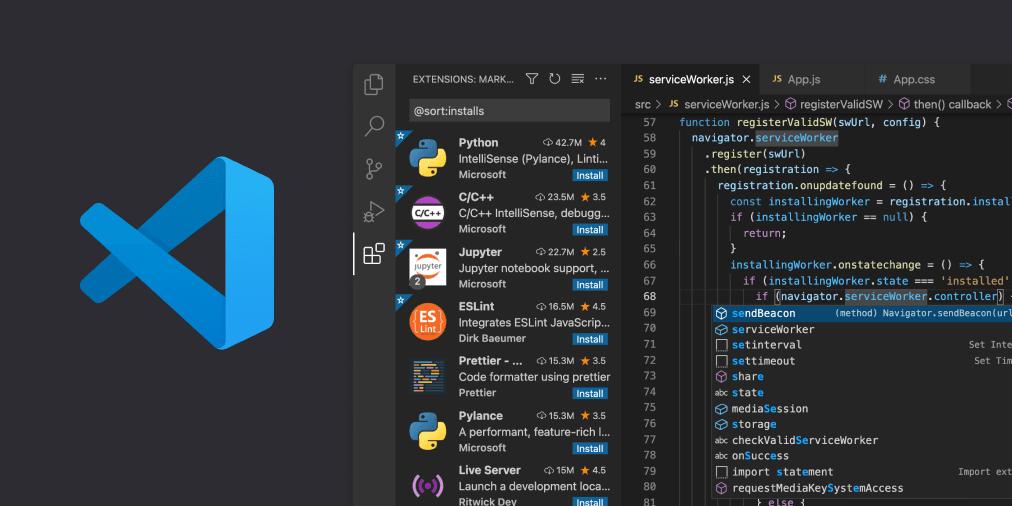
Visual Studio Code (VS Code) Cheat Sheet
Visual Studio Code (VS Code) is a popular code editor known for its versatility, rich feature set, and extensive ecosystem of extensions. Below is a cheat sheet to help you navigate essential features and functionalities in VS Code.
Basic Operations
Open Command Palette
Ctrl+Shift+P(Windows/Linux)Cmd+Shift+P(Mac)
Open Settings
Ctrl+,(Windows/Linux)Cmd+,(Mac)
Open File
Ctrl+O(Windows/Linux)Cmd+O(Mac)
Save File
Ctrl+S(Windows/Linux)Cmd+S(Mac)
Save All Files
Ctrl+K S(Windows/Linux)Cmd+Option+S(Mac)
Close File
Ctrl+W(Windows/Linux)Cmd+W(Mac)
Close All Files
Ctrl+K Ctrl+W(Windows/Linux)Cmd+Option+W(Mac)
Editing
Cut Line (or Selection)
Ctrl+X(Windows/Linux)Cmd+X(Mac)
Copy Line (or Selection)
Ctrl+C(Windows/Linux)Cmd+C(Mac)
Paste
Ctrl+V(Windows/Linux)Cmd+V(Mac)
Undo
Ctrl+Z(Windows/Linux)Cmd+Z(Mac)
Redo
Ctrl+YorCtrl+Shift+Z(Windows/Linux)Cmd+Shift+Z(Mac)
Delete Line
Ctrl+Shift+K(Windows/Linux)Cmd+Shift+K(Mac)
Move Line Up/Down
Alt+Up/Down(Windows/Linux)Option+Up/Down(Mac)
Duplicate Line
Shift+Alt+Down(Windows/Linux)Shift+Option+Down(Mac)
Comment/Uncomment Line
Ctrl+/(Windows/Linux)Cmd+/(Mac)
Block Comment
Shift+Alt+A(Windows/Linux)Shift+Option+A(Mac)
Navigation
Go to File
Ctrl+P(Windows/Linux)Cmd+P(Mac)
Go to Line
Ctrl+G(Windows/Linux)Cmd+G(Mac)
Go to Symbol
Ctrl+Shift+O(Windows/Linux)Cmd+Shift+O(Mac)
Go to Definition
F12
Peek Definition
Alt+F12(Windows/Linux)Option+F12(Mac)
Navigate Back
Alt+Left(Windows/Linux)Cmd+Option+Left(Mac)
Navigate Forward
Alt+Right(Windows/Linux)Cmd+Option+Right(Mac)
Multi-cursor and Selection
Add Cursor Above/Below
Ctrl+Alt+Up/Down(Windows/Linux)Cmd+Option+Up/Down(Mac)
Add Cursor to Line Ends
Shift+Alt+I(Windows/Linux)Cmd+Option+I(Mac)
Select Next Match
Ctrl+D(Windows/Linux)Cmd+D(Mac)
Select All Matches
Ctrl+Shift+L(Windows/Linux)Cmd+Shift+L(Mac)
Column (Box) Selection
Shift+Altand drag with mouse (Windows/Linux)Cmd+Optionand drag with mouse (Mac)
Integrated Terminal
Open Terminal
Ctrl+` (Windows/Linux)Cmd+` (Mac)
New Terminal
Ctrl+Shift+` (Windows/Linux)Cmd+Shift+` (Mac)
Toggle Terminal
Ctrl+` (Windows/Linux)Cmd+` (Mac)
Search and Replace
Find
Ctrl+F(Windows/Linux)Cmd+F(Mac)
Replace
Ctrl+H(Windows/Linux)Cmd+Option+F(Mac)
Find in Files
Ctrl+Shift+F(Windows/Linux)Cmd+Shift+F(Mac)
Replace in Files
Ctrl+Shift+H(Windows/Linux)Cmd+Shift+H(Mac)
Git Integration
View Source Control
Ctrl+Shift+G(Windows/Linux)Cmd+Shift+G(Mac)
Stage Changes
- Click the
+icon next to the file in the Source Control panel.
- Click the
Commit Changes
- Type your commit message in the Source Control panel and click the checkmark icon.
Push/Pull
Ctrl+Shift+P(Windows/Linux) orCmd+Shift+P(Mac) and typeGit: PushorGit: Pull.
Extensions
Open Extensions View
Ctrl+Shift+X(Windows/Linux)Cmd+Shift+X(Mac)
Install Extension
- Search for the desired extension in the Extensions view and click
Install.
- Search for the desired extension in the Extensions view and click
Debugging
Start Debugging
F5
Stop Debugging
Shift+F5
Step Over
F10
Step Into
F11
Step Out
Shift+F11
Toggle Breakpoint
F9
Snippets
Insert Snippet
Ctrl+Shift+P(Windows/Linux)Cmd+Shift+P(Mac)Type
Insert Snippetand select from the list.
Miscellaneous
Toggle Sidebar Visibility
Ctrl+B(Windows/Linux)Cmd+B(Mac)
Toggle Zen Mode
Ctrl+K Z(Windows/Linux)Cmd+K Z(Mac)
Zoom In/Out
Ctrl+=/Ctrl+-(Windows/Linux)Cmd+=/Cmd+-(Mac)
Open Keyboard Shortcuts
Ctrl+K Ctrl+S(Windows/Linux)Cmd+K Cmd+S(Mac)
This cheat sheet provides a quick reference to the most commonly used VS Code commands and shortcuts. For more detailed information and additional features, refer to the official VS Code documentation.